
Analysis: Activity Relationship
The dynamics of a model may be visualized by activity relationships (also known as dose-response curves) to investigate the qualitative input-output relationships between an external cellular signal and various components of the model.
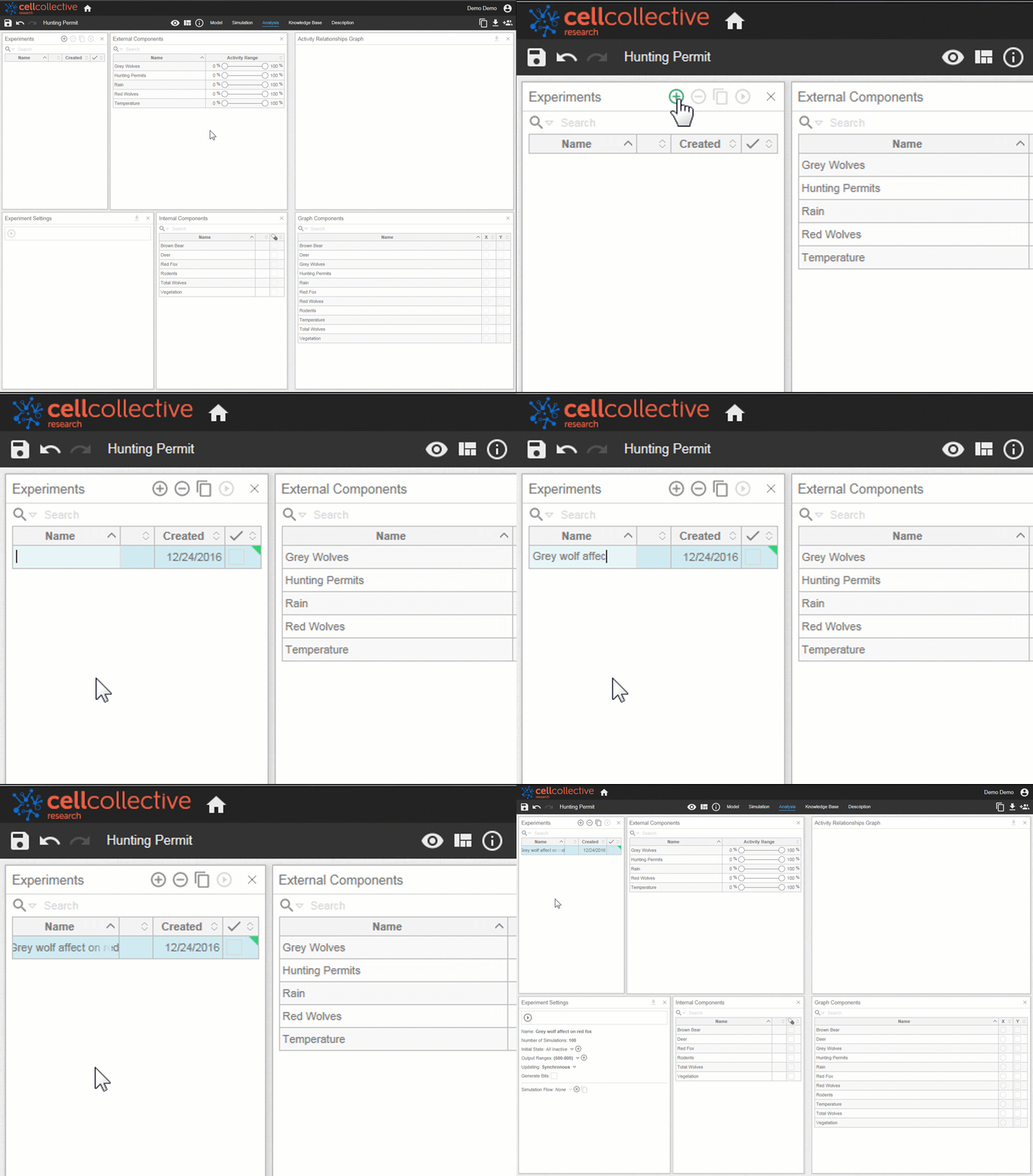
Performing a Dynamical Analysis Experiment
- Open the Analysis page from the navigational panel

2. From the Experiments panel, create a new experiment by clicking on. Experiments may be renamed by clicking on  the form field:
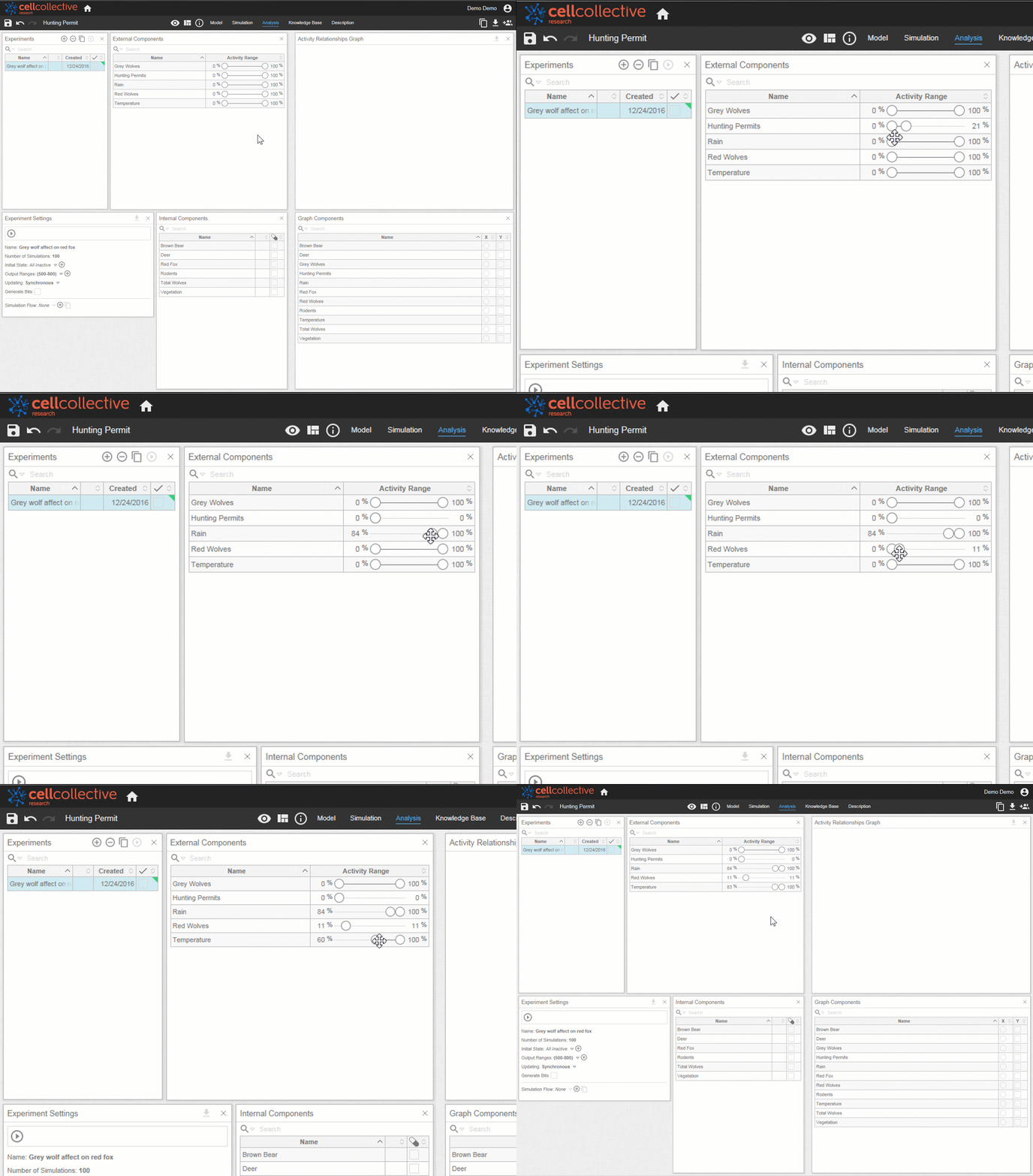
3. Experimental input values are set using the activity range sliders located in the External Components panel
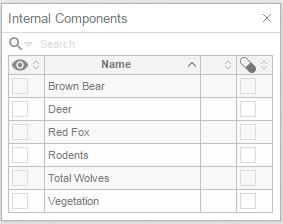
4. Loss/Gain functions (i.e. mutations) may be added using the checkboxes in the Internal Components panel. For an in-depth look into mutations, see the tutorial Loss/Gain Functions
5. You may generate a dose-response graph for any species in the model by selecting the appropriate component for the X and Y-axis under the Graph Components panel
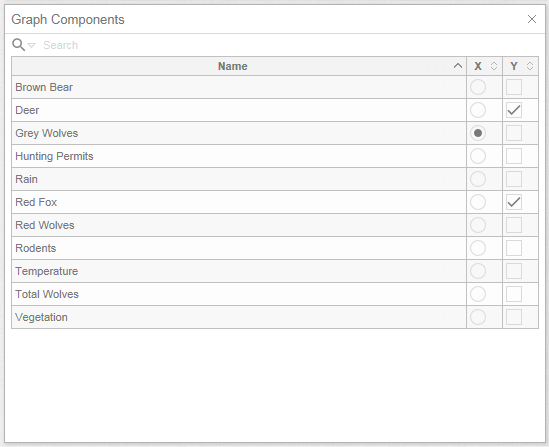
Note that multiple components may be selected for the Y-axis, but only one component for the X-axis. In general, an external component is represented on the x-axis whereas internal components are represented on the y-axis
6. Experimental parameters are set using the Experimental Settings panel. You may use default values, or see relevant tutorials to learn how to set custom parameters. Run the simulation by clicking on 
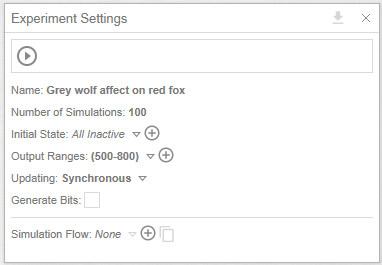
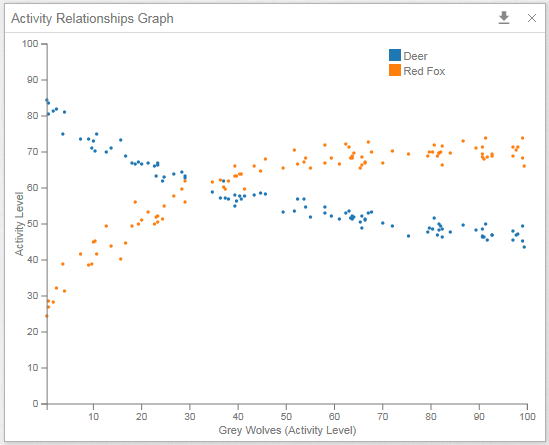
7. Once the simulation is complete, the selected components will be displayed on the Activity Relationship Graph
Generating Multiple Activity Relationship Graph from a Single Experiment
A significant advantage of the analysis feature is the ability to generate a number of analyses without re-running the entire experiment. For example, in addition to examining the relationship of Red Fox and Deer to Grey Wolves, you may generate additional dose-response curves for any component in the model using the original experiment
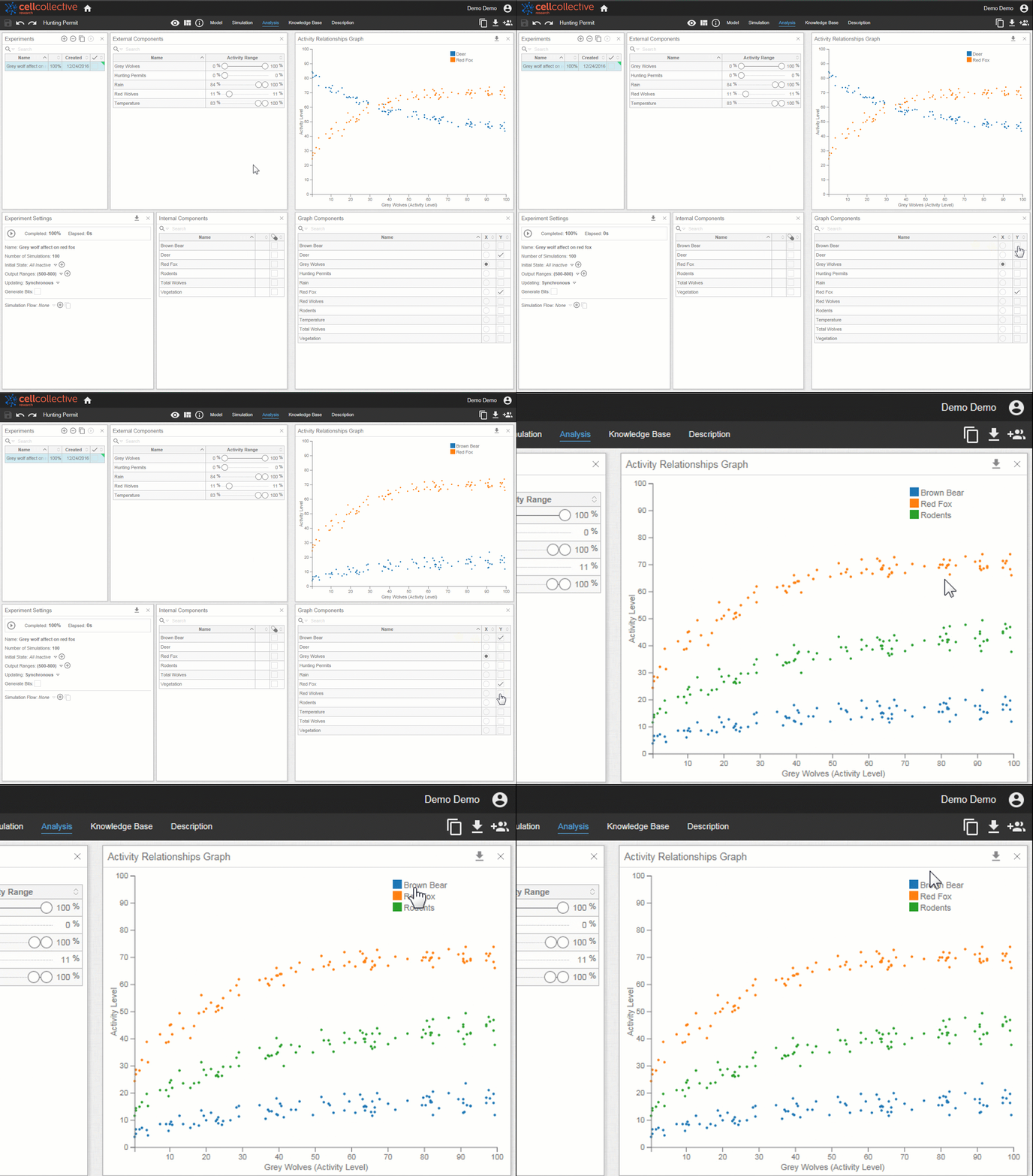
Note that hovering over the labels highlights the appropriate curve. This is useful when multiple components are on the graph
Related Articles