
Add or Remove a SubCondition
SubConditions are used to model-dependent Conditions. This tutorial explains how to use SubConditions
Add a SubCondition
- Open the Regulatory Mechanism page of the component you are defining
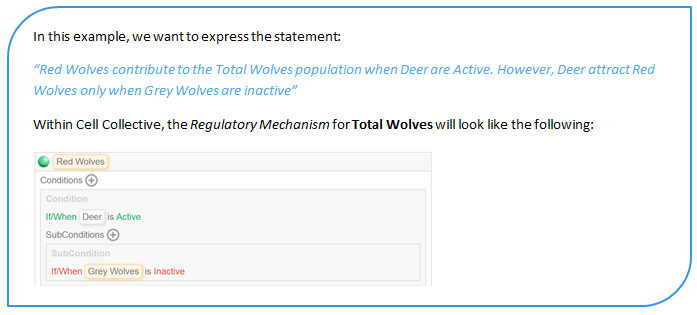
2. A Condition must be added before subsequent SubConditions may be used. Let’s add the Condition “when Deer is Active”
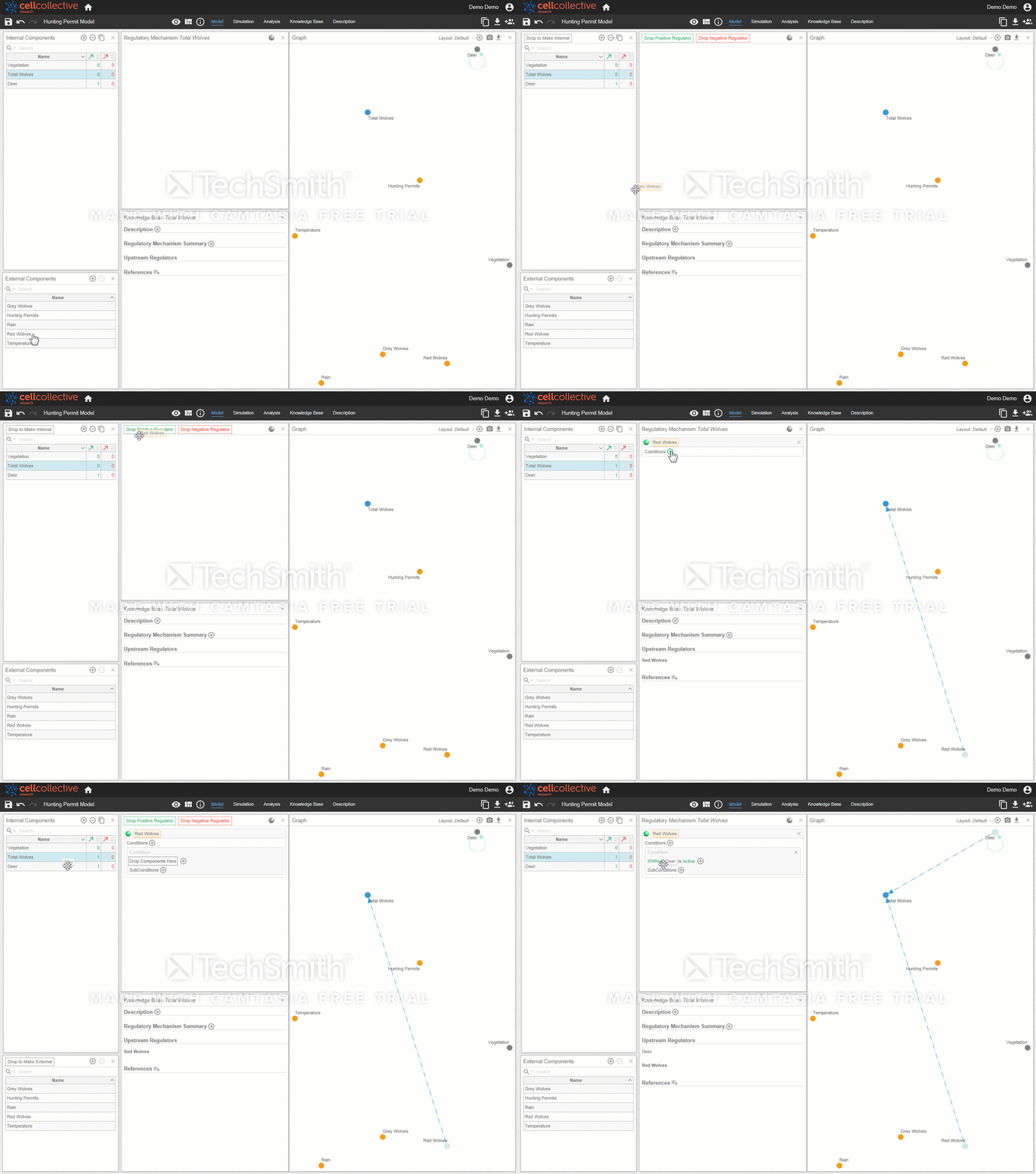
3. Once the Condition is added, we can open the Conditions panel by clicking on 
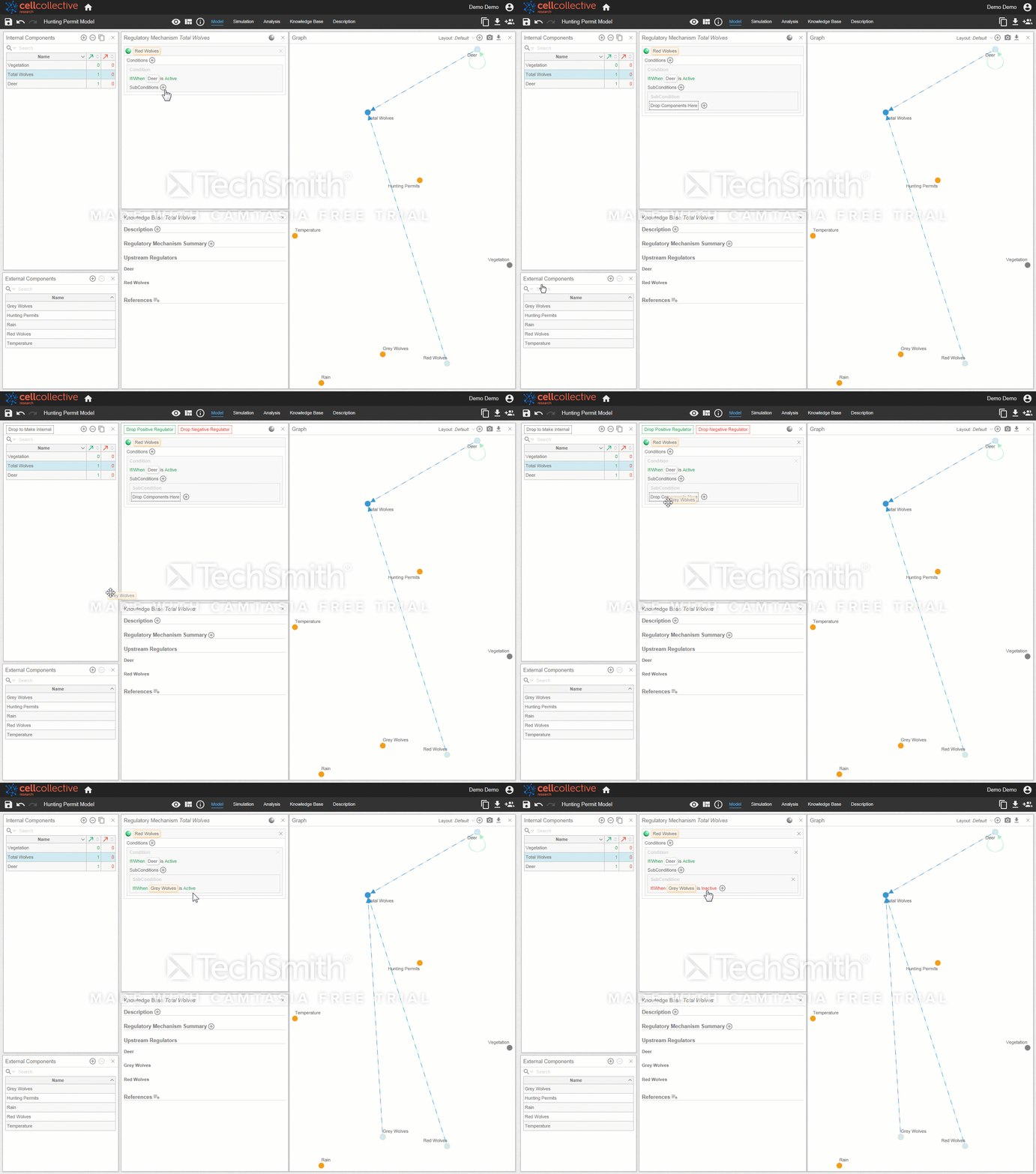
Therefore, the Condition “when Deer is Active” is dependent on Grey Wolves being inactive
Remove a SubCondition
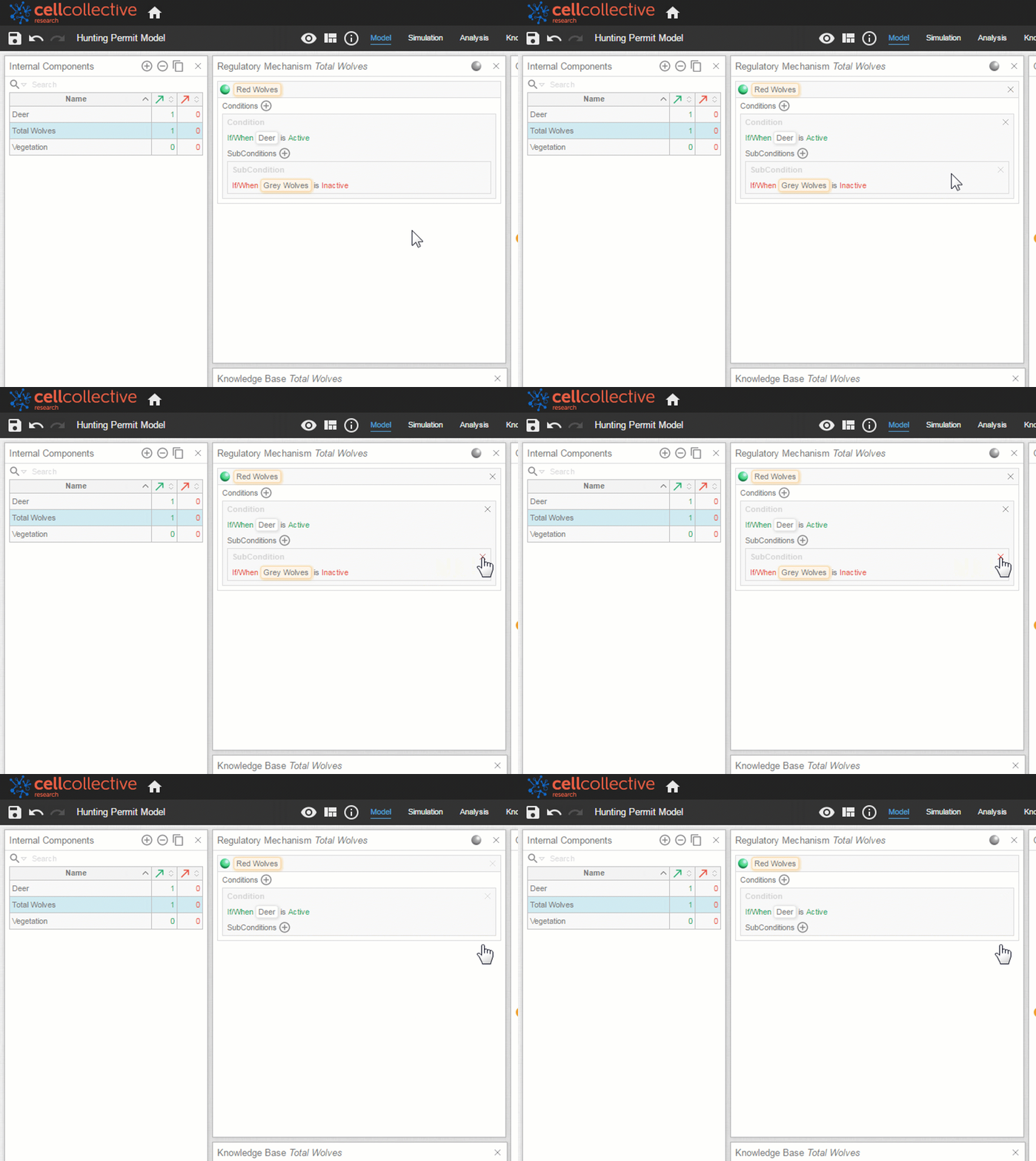
To remove a SubCondition, simply hover over the SubConditons panel and click on the x
Related Articles